
Features
Everything a good price list needs
From loading a spreadsheet to a print-ready flyer. Every feature works with the columns of your own file.
Data
Your spreadsheet, as it is
Excel, OpenDocument and CSV
.xlsx, .xls, .ods, .csv and .tsv files; pick the sheet of a multi-sheet workbook. The Recent list reopens files in one click.
Your columns
Choose what to show and change the name, width, alignment and decimals. Every field can have its own font, color, background and frame.
Categories
Pick the column that splits the catalog into sections; drag to reorder, untick the ones you don’t need.
Sorting
Up to three levels, e.g. Category → Name → Price. Numbers sort as numbers (2.50 < 15.90).
Product filter
Works like VLOOKUP: a second spreadsheet decides which products make it into the catalog — for example a list of EAN codes for a promotional flyer.
Data check
Lists missing images, empty values, duplicate codes and products outside the categories before you print.
Look
A table, cards or a flyer
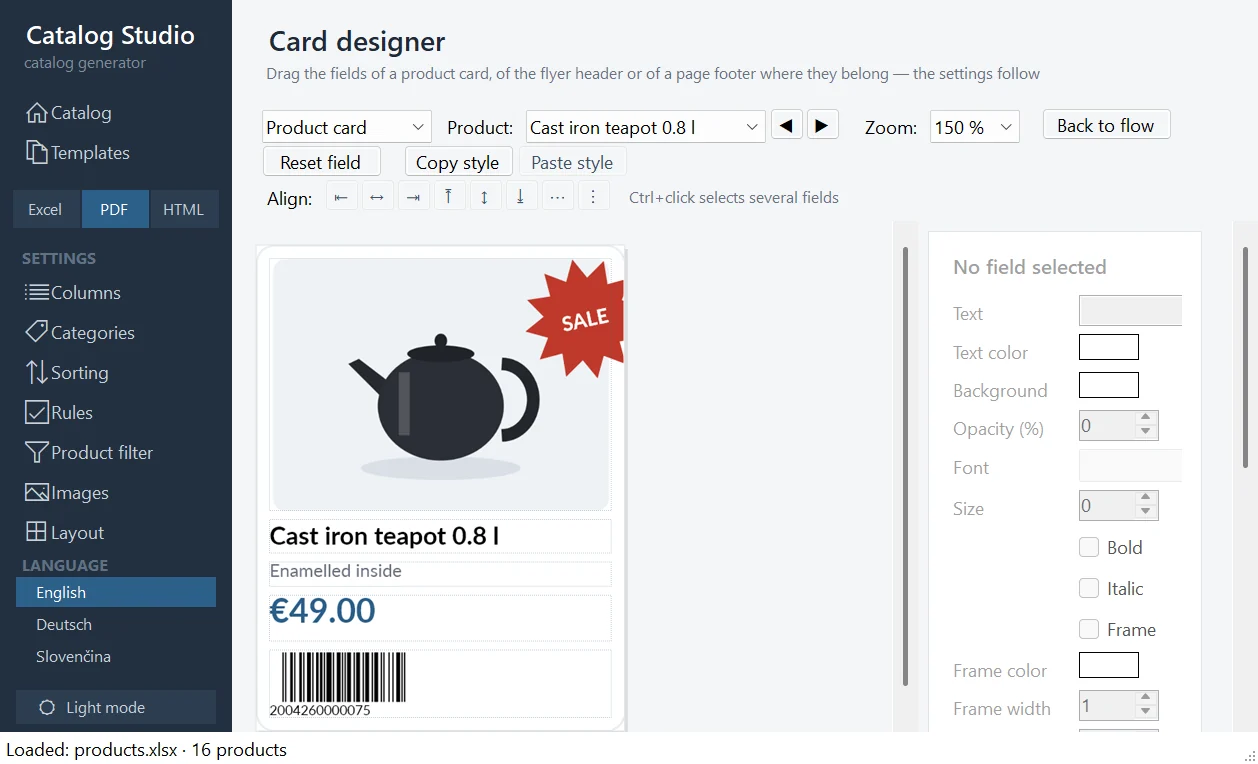
Table or cards
A classic price list in rows, or a flyer with product cards — 1 to 6 cards side by side.
Card designer
One card at a large zoom, drawn by the same renderer as the PDF. Drag fields with the mouse; they snap to the edges and to each other, and several fields can be aligned or given the same style.
Page layouts
Columns and rows for every page, plus individual layouts for chosen pages — for example pages 2–3 with 6 × 8 cards.
Flyer header
A colored band on top of the first page with a logo, a picture and texts placed right in the designer.
Page footer and cover page
A band along the bottom edge with text and a picture, per page. A cover page with the logo, price-list name, date and company details.
Product images
Found in a folder by a column’s value; make a white background transparent, round the corners, set the print resolution.
Rules and codes
A catalog driven by the data
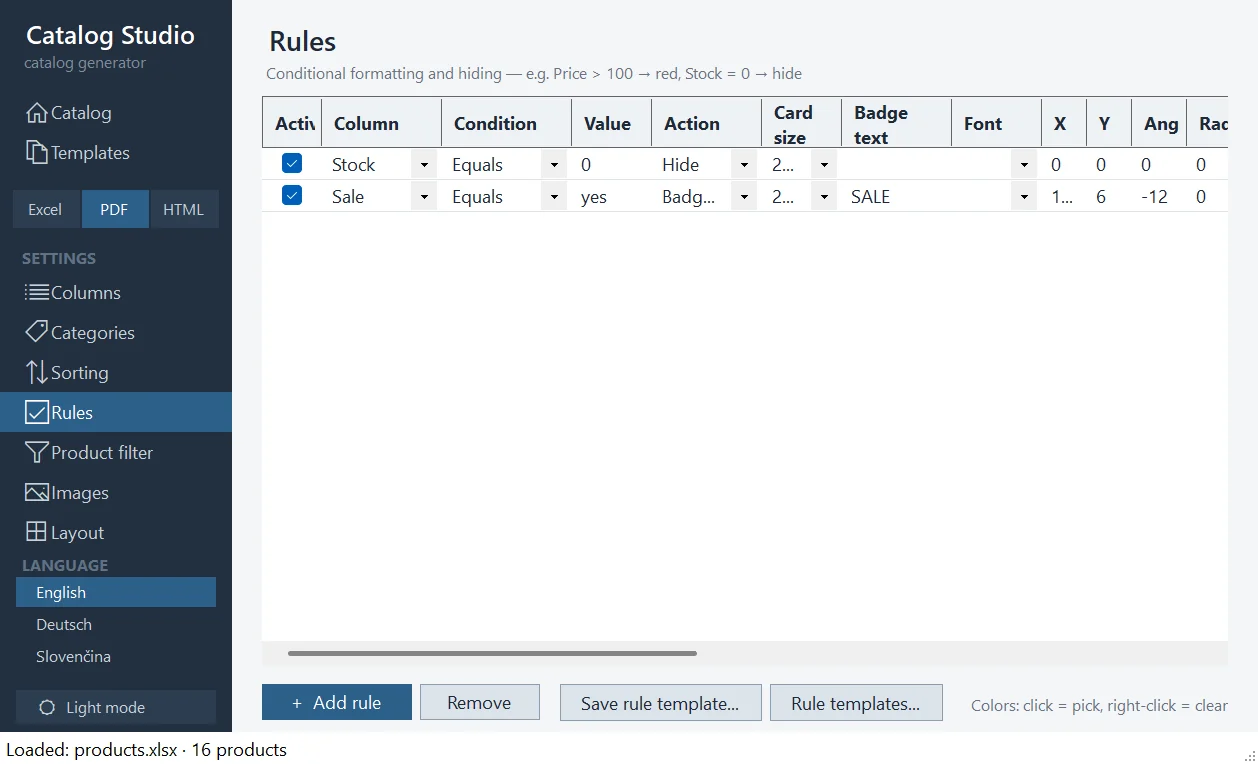
Rules
A condition on any column (contains, equals, greater than, is empty…) and an action: Format, Hide, Enlarge the card, Move to start / end of the catalog, or a Badge with a caption.
41 badge shapes
Starburst, price tag, shield, speech bubble, banner and more — with their own color, angle and frame.
QR, EAN and Code 128
A column shows its value as a code. A missing EAN check digit is added. PDF and HTML draw codes as vectors; Excel gets pictures and keeps the value in the cell.
Outputs
Excel, PDF, web and images
Excel
Row height, headers repeated on every printed page, printing fitted to the page width.
A4 or A3, portrait or landscape, margins per side, crop marks and bleed. A product is never split across two pages.
Web catalog
One .html file for any browser, even offline. Images embedded, linked, or copied next to it.
Page images
PNG for sharp text or JPG for smaller files, 150 DPI for screens or 300 DPI for print.
Working with the program
From file to catalog, quickly
- First-catalog guide in four steps right on the start screen.
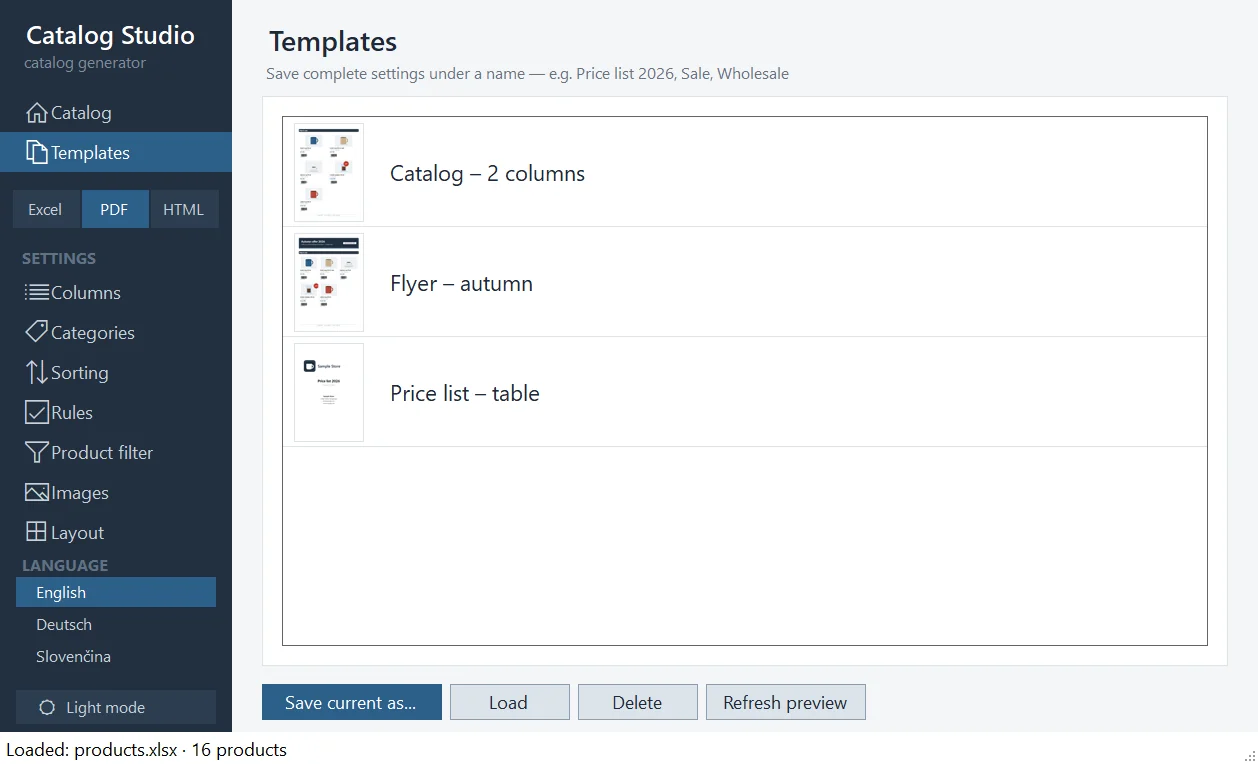
- Templates with thumbnails — each format has its own template picker, so Excel, PDF and web are produced at once.
- Live PDF preview that redraws while you edit.
- Undo and redo (Ctrl+Z / Ctrl+Y) and keyboard shortcuts — Ctrl+G generates, F5 opens the preview.
- Dark mode, or follow the Windows setting.
- Three languages for the program and the guide: Slovak, English, German.
Updates and license
No subscription, no fuss
One-button updates
About › Updates downloads the new version and restarts the program. Settings, templates and the license stay.
Nothing in the background
The program checks nothing until you click the button.
A license, not a subscription
The key belongs to one computer and never expires.